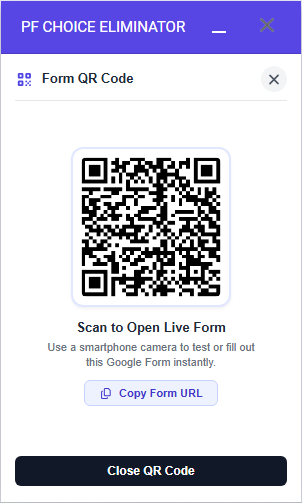
The Form QR Code feature in PF Choice Eliminator generates a scannable code for your form’s live link, along with a one-click way to copy that link. Use it to let people open and test the published form on a phone without typing a URL.
Before you begin #
You need a Google Form with the PF Choice Eliminator add-on already added to your Google account. If the add-on isn’t installed yet, add it from Google Workspace Marketplace before continuing.
Open the QR code panel #
- Open your form in Google Forms.
- In the toolbar, click the Add-ons icon, then select PF Choice Eliminator. The add-on panel opens on the right side of the form, headed PF Choice Eliminator.
- At the bottom of the panel, click Form QR, next to Responses. The panel switches to the Form QR Code view, showing a QR code, the heading Scan to Open Live Form, and a Copy Form URL button.
Copy the form’s URL #
- In the Form QR Code view, click Copy Form URL.
- A confirmation message, “Form URL copied to clipboard!”, appears at the top of the panel. Click its X to dismiss it.
- Paste the link (Ctrl+V or Cmd+V) wherever you want to share it — an email, a chat message, or another app.
Close the QR code panel #
There are two ways to leave the Form QR Code view:
- Click the X next to the Form QR Code heading at the top of the panel.
- Click Close QR Code at the bottom of the panel.
Either one returns you to whichever tab — Questions or Form Settings — was open before you opened the QR code panel.
Things to know #
- The Form QR Code view doesn’t include options to resize, recolor, or otherwise customize the QR code.
- Copy Form URL and Close QR Code are the only actions available in this view — there’s no separate button for downloading, saving, or regenerating the QR code image.
- The QR code and Copy Form URL both point to the same form link, so scanning the code and pasting the copied link opens the same live form.
- The Form QR button is available from both the Questions tab and the Form Settings tab, so you can open the QR code panel no matter which tab you’re on.


